
DNS monitoring means asking a resolver for one of your records on a schedule and checking that the answer is still the one you expect. A good DNS monitor raises an alert when the record disappears, when it no longer matches the expected value, and when the answer changes at all, so a broken or hijacked record is found in minutes instead of by your customers.
Key takeaways
- An HTTP check tells you a site is down; a DNS check tells you why visitors may be sent somewhere else, or nowhere.
- AllInOneMonitor's DNS monitor supports A, AAAA, CNAME, MX, TXT, NS, SOA, PTR, SRV and CAA records.
- Every answer is fingerprinted, so any change raises a DNS changed alert, at most once an hour.
- Use the Exactly the expected values match mode on NS and A records to catch hijacking and unwanted edits.
- The time a lookup takes is stored as the response time, and a limit can turn a slow resolver into a Down result.
Why DNS deserves its own monitor
Most outages that start in DNS look like something else. A visitor sees "server not found", an e-mail bounces, or a certificate request fails because a CAA record blocks the issuer.
DNS problems usually come from one of four places:
- Human edits. Someone cleans up the zone, removes a record that "looked unused", or types an IP address with one digit wrong.
- Provider moves. Nameservers are switched to a new DNS host before every record has been copied.
- Expired or neglected domains. When a domain lapses, the registry stops publishing its nameservers.
- Hijacking. An attacker who gets into your registrar or DNS account changes NS or A records to point traffic at their own servers.
Which records to watch
You do not need a monitor for every record in the zone. Pick the ones whose failure would hurt most:
| Record | What it controls | A sensible expected value |
|---|---|---|
| A / AAAA | Where the website and API live | The IPv4 / IPv6 address of your server or load balancer |
| CNAME | Aliases such as www or a CDN hostname | The target hostname |
| MX | Where e-mail for the domain is delivered | Part of your mail provider's hostname |
| NS | Which DNS provider is authoritative | Your nameservers, all of them |
| TXT | SPF, domain verification tokens, DMARC on _dmarc | A distinctive part of the record, such as v=spf1 |
| CAA | Which certificate authorities may issue certificates | The issuer you use |
A practical starting set for a business site is one A record monitor for the main hostname, one for the API host, an MX monitor and an NS monitor. That covers the website, the e-mail flow and the most common hijacking path.
How to set up a DNS monitor
- Open Monitors and click Add monitor.
- Under What to monitor, choose DNS.
- In Basics, give it a clear Name (for example "DNS example.com") and enter the Host you want resolved, such as
example.comorapi.example.com. - Pick a Check interval. Your plan sets the fastest one available.
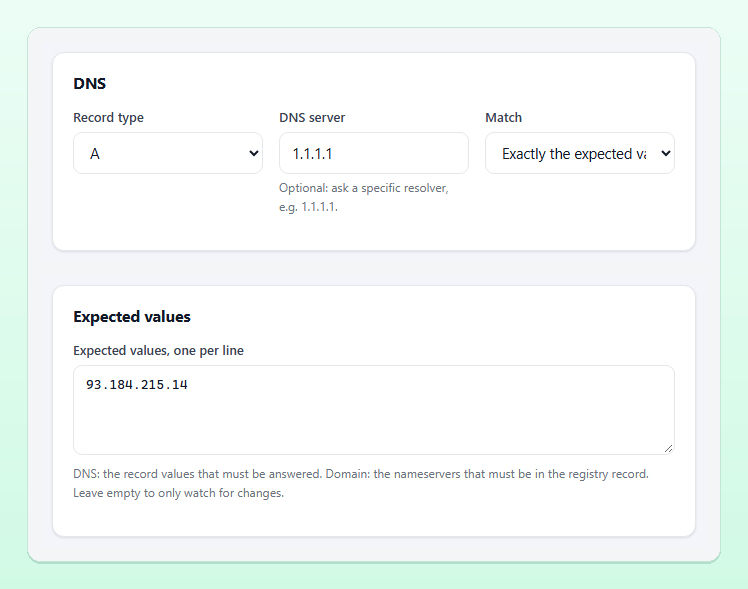
- In the DNS card, choose the Record type, optionally fill in a DNS server, and choose the Match mode.
- In Expected values, list the values that must be answered, one per line. Leave it empty if you only want to be told about changes.
- Tick the alert channels that should hear about it, press Test now to see the current answer, then Create monitor.
Any expected value present, or exactly the expected values
The Match setting decides how strict the check is:
- Any expected value present (the default) passes when at least one expected value appears in the answer. The comparison is a substring match, so an expected
google.commatches an MX answer such asaspmx.l.google.com. - Exactly the expected values passes only when the answer set equals your list. An extra A record added by someone else, or a missing nameserver, turns the monitor Down.
No record at all is always Down, whatever the mode.
System resolver or a named resolver
Leave DNS server empty to use the system resolver of the location running the check. Enter a resolver such as 1.1.1.1 or one of your own authoritative nameservers to ask that server directly. Asking your authoritative nameserver shows exactly what your zone says right now, without anyone's cache in between, while a public resolver shows what most visitors receive.
Tip: Run two monitors for your most important hostname: one against your authoritative nameserver and one against a public resolver. When only the second one changes, you are looking at caching or propagation, not a zone edit.
How DNS record change alerts work
After every successful lookup, the sorted answer set is turned into a fingerprint. When the fingerprint differs from the previous check, AllInOneMonitor raises a DNS changed alert. It goes to the monitor's channels like any other alert, appears in the notification bell, and is sent to webhooks as the monitor.dns_changed event. To keep a record that flips between two values from flooding you, the change alert is sent at most once an hour per monitor.
This works even with an empty Expected values list, which makes it a cheap way to watch records you do not want to pin down, such as a TXT record that several teams edit. If a channel should not receive change notices, open Alert channels, edit the channel and leave DNS record changed unticked under Events. The full event list is in the alerts documentation.
Using DNS monitoring for hijacking detection
No monitor can stop a hijack, but it can shorten the time an attacker has. Three settings do most of the work:
- NS records in exact mode. Create a DNS monitor with record type NS, list every nameserver you use, and choose Exactly the expected values. A swapped or added nameserver turns it Down at the next check.
- A records in exact mode. For the website and the API host, list the addresses you expect. A new address that you did not add is a reason to look immediately.
- A Domain monitor with expected nameservers. The Domain monitor reads the registry record through RDAP or WHOIS and checks that every name in Expected nameservers is there. That catches a change made at the registrar, which is where many hijacks start. Read more in our guide to domain expiry monitoring.
Add a CAA monitor if you restrict certificate issuers, and pair it with SSL certificate monitoring so an unexpected certificate or a failed renewal is noticed too.
DNS resolution time
A DNS monitor records how long the lookup took, and that figure is its response time. It is drawn on the monitor's response-time chart and averaged in reports like any other check. A slow resolver adds that delay to the first visit of every visitor whose cache is empty, so it is worth watching.
In the Basics card, Max response time (ms) applies to DNS monitors as well: a lookup slower than the limit counts as Down with a message such as "DNS answered in 900 ms (limit 300)". Set the limit with some headroom over the normal value you see on the chart, and use Confirmations so one slow answer does not page anyone.
Checking propagation from several locations
After a planned change you often want to know whether the world sees the new answer yet. Two tools help:
- Locations on the monitor. Depending on your plan, a monitor can run from the main server and from probes that the operator has registered. Each location resolves the name with its own resolver, and the results are stored per location.
- Diagnostics. Open Diagnostics, choose DNS lookup, enter the host, pick a record type and several locations, and press Run. The result page says either that every location got the same answer or that the answers differ, with each answer and the locations that received it. It is the quickest way to see a propagation delay or a geo-DNS answer. See the diagnostics documentation for the limits.
How several locations are combined into one status is explained in our guide on how to monitor a website from multiple locations.
What happens when a DNS monitor fails
A failed DNS check behaves like any other monitor. After the number of Confirmations you set, the monitor turns Down, an incident opens, and your channels are told. When the answer is right again, the incident is resolved with its duration. If a website monitor for the same name fails at the same moment, the intelligence layer can point at the DNS monitor as a likely root cause, labelled as a suggestion rather than a diagnosis; the monitor documentation lists every DNS option in one place.
Frequently asked questions
How often should a DNS record be checked?
DNS changes rarely, so every 5 to 15 minutes is enough for most records. Use a shorter interval for the NS and A records of your main domain if your plan allows it, since those are the ones an attacker would change.
Will I get an alert for every DNS change?
You get one DNS changed alert when the answer set differs from the previous check, and at most one per hour per monitor. Channels can opt out of these notices in their Events list.
Can I monitor an MX or TXT record, not only an A record?
Yes. The DNS monitor supports A, AAAA, CNAME, MX, TXT, NS, SOA, PTR, SRV and CAA, and the expected value can be a distinctive part of the answer, such as your mail provider's domain or v=spf1.
Does a DNS monitor show resolution time?
Yes. The time the lookup took is stored as the response time and shown on the monitor's chart, and Max response time (ms) can turn a slow answer into a Down result.
Know the moment your DNS changes
Add NS, A and MX monitors in a few minutes and let AllInOneMonitor tell you when an answer goes missing or changes. Compare what each plan includes on the pricing page.