
To get Telegram alerts when a website goes down, create a bot with @BotFather, add it to your chat, and save its bot token and the chat ID as a Telegram channel under Alert channels. Slack, Discord and Microsoft Teams work the same way with a webhook URL. Each channel can be limited to certain events, held back by a cooldown or quiet hours, and used as a default or an escalation route.
Key takeaways
- Telegram needs a bot token and a chat ID; Slack, Discord and Microsoft Teams need only a webhook URL.
- Every channel has a Test button, so you can confirm delivery before the first real outage.
- Events, cooldown and quiet hours keep a busy chat readable; recoveries are always delivered.
- Channels marked as default serve every monitor and server without its own channel list.
- Failed deliveries are retried and every attempt is kept in the notification log.
Why chat is a good home for alerts
E-mail alerts get buried, and a phone call for every slow response is too much. Team chat sits in between: the whole on-call group sees the same message, someone answers "on it", and the conversation about the fix happens right below the alert. That is the core idea of chat ops notifications.
AllInOneMonitor supports these channel types, all created under Alert channels:
| Channel | What you enter | How the message looks |
|---|---|---|
| Telegram | Bot token, Chat ID | HTML formatted text with an "Open" link |
| Slack | Incoming webhook URL | Blocks with an "Open" button |
| Discord | Webhook URL | An embed coloured red, yellow or green |
| Microsoft Teams | Incoming webhook / workflow URL | An Adaptive Card, or the legacy connector format |
| Webhook | URL, optional signing secret | A JSON POST for your own code |
E-mail, SMS, WhatsApp, mobile push and browser push are available too. For the urgent end of the scale, see our guides to SMS alerts when a website is down and WhatsApp alerts. How many channels an organisation may have depends on the plan.
How to set up Telegram alerts
- In Telegram, open a chat with @BotFather, create a new bot and copy the token it gives you.
- Add the bot to the group that should receive alerts, or start a private chat with it, and send it any message.
- Find the chat ID (see below).
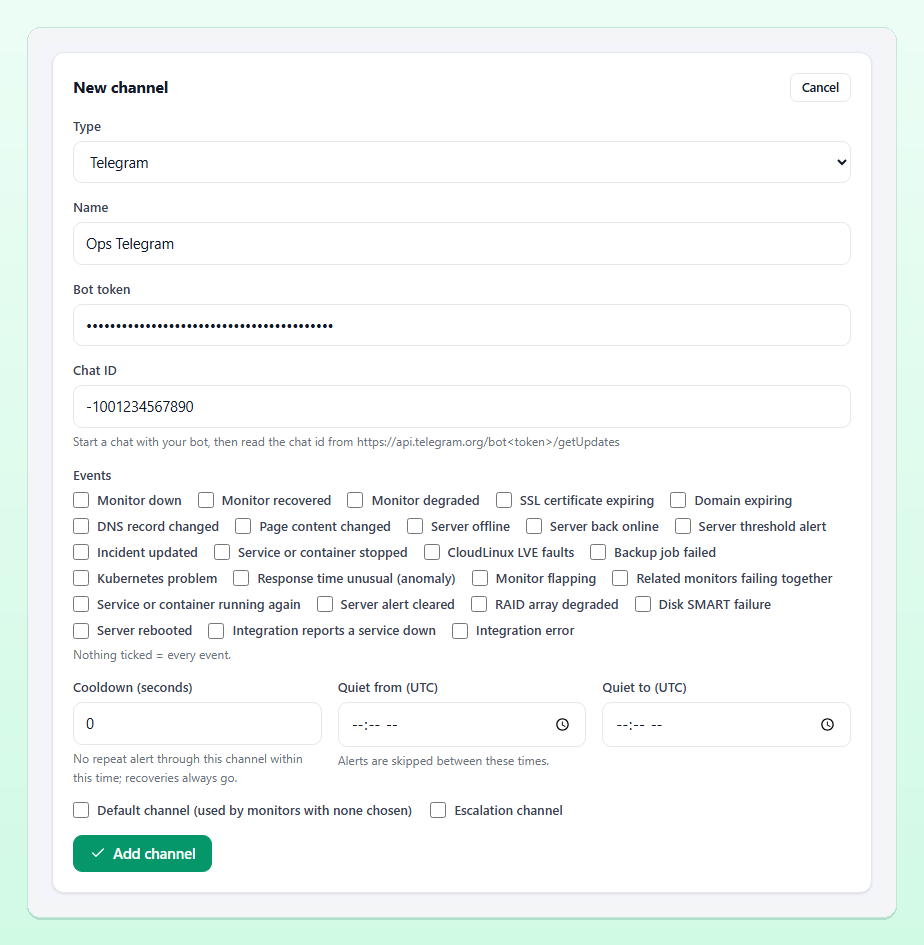
- In the panel open Alert channels and click Add channel. Set Type to Telegram and give the channel a Name, for example "Ops Telegram".
- Paste the Bot token and the Chat ID, choose the events, and click Add channel.
- Press Test next to the new channel. A sample message should appear in the chat within moments.
Finding the chat ID
After you have sent a message to the bot (or in the group with the bot), open this address in a browser with your own token in place of <token>:
https://api.telegram.org/bot<token>/getUpdatesThe answer is JSON. Read the id inside chat. Group IDs are negative numbers; copy the minus sign too. If the answer is empty, send another message and reload.
Tip: The bot token gives control of the bot, so treat it like a password. Channel settings are stored encrypted, but anyone you paste the token to in a chat can use it.
Slack alerts for website down events
Slack receives alerts through an incoming webhook:
- Create a Slack app with Incoming Webhooks switched on and add it to the channel that should receive alerts, for example
#alerts. - Copy the webhook URL Slack shows you.
- In Alert channels click Add channel, choose Slack, paste it into Incoming webhook URL and save.
- Press Test.
Messages arrive as Slack blocks with an "Open" button that leads into the panel, so whoever picks up the alert is one click from the details.
Discord webhook alerts
In Discord open Server settings → Integrations → Webhooks, create a new webhook for the channel you want and copy its URL. Add a channel of type Discord with that Webhook URL. Alerts arrive as an embed coloured green for recoveries, yellow for degraded, expiry and change notices and red for the rest, which makes a scrolling channel easy to scan.
Microsoft Teams alerts
For Teams, choose Microsoft Teams and paste an Incoming webhook / workflow URL. The channel works with the Workflows template that posts to a channel when a webhook request is received (sent as an Adaptive Card) and with the legacy incoming-webhook connector format, which is tried second.
Route the right events to the right chat
One busy channel for everything quickly becomes background noise. A few settings on each channel keep it useful.
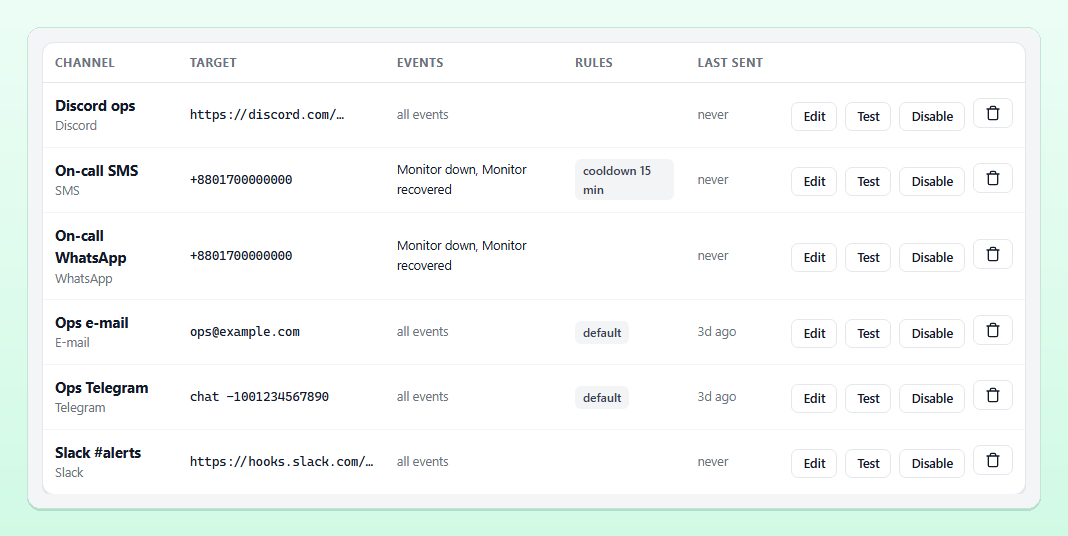
- Events: tick only what the chat should hear, for example Monitor down and Monitor recovered for a customer-facing team, plus SSL and domain expiry for the ops room. Nothing ticked means every event.
- Default channel: marked channels serve every monitor and server that has no channels of its own.
- Per monitor: the Alert channels box on a monitor or server sends its alerts only to the channels you tick there, so the payments API can go to the payments team's Slack and the marketing site to a Discord channel.
A layout that works well for a small team:
| Channel | Events | Rules |
|---|---|---|
| Slack #alerts | Everything | Default |
| Ops Telegram | Monitor down, Monitor recovered, Server offline | Default, no quiet hours |
| Discord ops | SSL certificate expiring, Domain expiring, DNS record changed | Cooldown of an hour |
| On-call SMS | Monitor down | Escalation channel, not default, not ticked on monitors |
The busy channel gives the full picture to anyone curious, the Telegram group buzzes only for real outages, and the phone rings only when an incident stays unacknowledged.
Cooldown and quiet hours
Cooldown (seconds) skips further monitor alerts through the same channel for that long after a message. Quiet from (UTC) and Quiet to (UTC) skip alerts inside a daily window, such as 23:00 to 07:00. Recoveries always go through, and server alerts are not held by quiet hours. Keep at least one channel without quiet hours for the problems that must wake someone up. Our guide on how to reduce false alerts covers confirmations and flapping too.
Escalation
Tick Escalation channel on a channel and set Escalate after (minutes) on the Escalation tab. When a monitor incident is still open and nobody has acknowledged it after that time, the escalation channels receive an "ESCALATION" message, once per incident. A common pattern is chat first, then SMS to the on-call phone if the chat stays silent. Acknowledging the incident stops it; see incidents.
When a message does not arrive
Failed deliveries are retried with back-off after 1, 5 and 15 minutes. The Notification log tab on the Alert channels page lists every attempt as sent, failed with the provider's answer, or skipped with the reason, such as cooldown or quiet hours. The usual culprits are a revoked Slack or Discord webhook, a Telegram bot that was removed from the group, or a chat ID without its minus sign. The full channel reference is in the alerts documentation, and every channel type is listed on the features page.
Frequently asked questions
Can I send alerts to a Telegram group instead of a private chat?
Yes. Add the bot to the group, send a message there, and use the group's chat ID, which is a negative number.
Can one monitor alert Slack and Telegram at the same time?
Yes. Tick both channels in the monitor's Alert channels box, or mark both as default channels so every monitor without its own list uses them.
Will I get a message when the site comes back up?
Yes. Recoveries are always delivered, even during a channel's cooldown or quiet hours, and the message includes how long the downtime lasted.
Are alerts sent during a maintenance window?
No. While a maintenance window covers a monitor or server, channels are not notified; checks, results and webhooks continue.
Bring downtime alerts into your team chat
Connect Telegram, Slack, Discord or Teams in a couple of minutes and send a test message before the next outage.