
To reduce false alerts, require a failure to be confirmed before anyone is notified: several failed checks in a row, or failures from more than one monitoring location. Then tune timeouts to reality, let the system group related failures and hold back flapping monitors, and use cooldowns, quiet hours and maintenance windows so the alerts that do arrive are worth acting on.
Key takeaways
- Most false positive monitoring alerts come from one bad network path or one slow moment, not from your service.
- Confirmations trade a little detection time for a lot of quiet; 2 is a sensible default.
- Checking from several locations separates "the site is down" from "one route is down", which shows up as Degraded.
- Flapping detection, alert grouping and dependencies turn a storm of messages into one useful notice.
- Cooldowns, quiet hours and maintenance windows control delivery without deleting the record.
Why false alerts are dangerous
A false alert costs more than a wasted minute. Every alert that turns out to be nothing teaches the person on call that alerts can wait. After a few weeks of noise, messages get muted, channels get archived, and the real outage at 3 a.m. is read at 9. Reducing noise is not about comfort; it is about keeping alerts credible.
Where false positives usually come from
- Transient network problems between the checking location and your server: packet loss, a routing change, a DNS hiccup.
- Timeouts that are too tight for a page that is sometimes slow, such as during a cache rebuild or a backup.
- Over-strict rules: a max response time close to the normal value, or an exact status code where a redirect is normal.
- Flapping services that bounce between up and down for a few minutes.
- Cascades: one server or database fails, and every monitor that depends on it alerts separately.
- Planned work that nobody told the monitoring about.
Step 1: Use confirmations
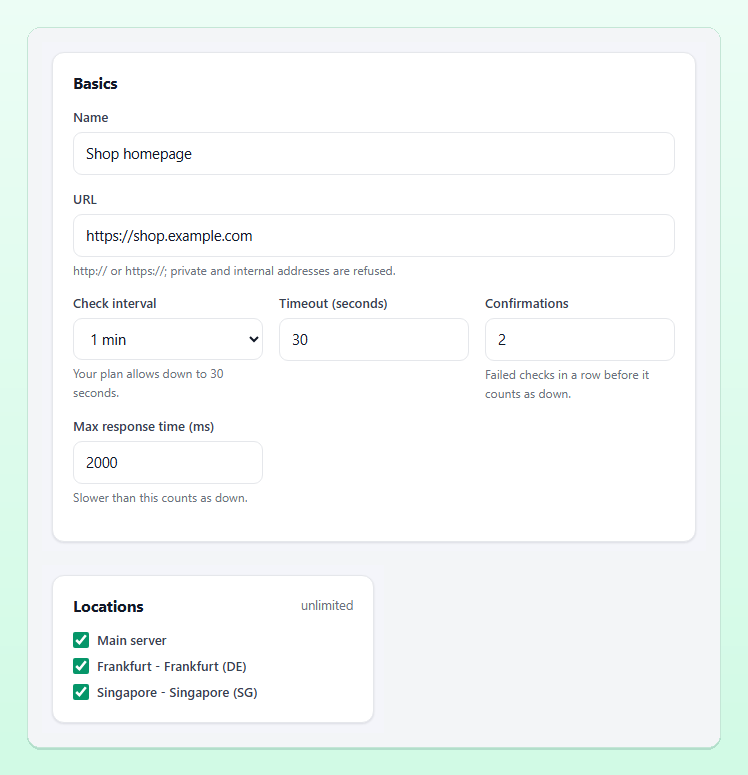
Confirmations is in the Basics card of every monitor, next to Check interval and Timeout (seconds). It accepts 1 to 10, and its meaning depends on how many locations the monitor uses:
- One location: the number of failed checks in a row before the monitor turns Down. One passing check resets the count.
- Several locations: the number of locations that must see the failure. If fewer locations fail, the monitor is Degraded rather than Down.
On a single location, confirmations cost time, because each extra confirmation waits for another scheduled check. With a 1-minute interval, 2 confirmations mean an alert roughly 1 to 2 minutes after an outage begins, and 3 confirmations roughly 2 to 3 minutes. With a 5-minute interval, the same settings mean 5 to 10 and 10 to 15 minutes. If confirmations make detection too slow, shorten the interval rather than dropping to 1; our article on the monitoring check interval explains the balance.
Step 2: Check from more than one location
A single location cannot tell the difference between "your server is down" and "the network between us is broken". Multi-location checks can. Every monitor can run from the Main server and from the probes (remote monitoring locations) that the operator of the service has registered. You tick them in the Locations card; how many you can pick depends on your plan.
With several locations, the newest result of each location is compared:
| Locations failing | Result (3 locations, confirmations 2) |
|---|---|
| None | Up |
| 1 of 3 | Degraded: a regional or network problem, recorded as a minor incident |
| 2 or 3 of 3 | Down: the alert goes out |
Degraded is the key to fewer false alarms: a problem seen from one place is recorded and visible, but does not page anyone by default. A monitor can still be set to alert on degraded results through the alert_degraded option of the API.
When probes are available in more than one region, the Location pools card offers Any probe in a region (the least busy probe of that region runs each check) and Automatic spread (each check runs on probes from several different regions). A probe that goes offline is replaced by another probe of the same region or by the main server, so checks never stop. How probes are added is explained in the probes documentation, and our guide to monitoring a website from multiple locations goes further.
Read the By location card
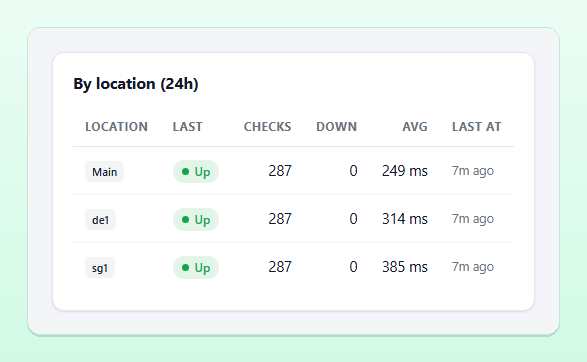
The monitor page has a By location (24h) card with, for each location, the latest status, the number of checks, how many were down, the average response time and when it last checked. If one location accounts for nearly all failures, the problem is that location's network path, not your service.
Tip: When one location keeps failing, run a traceroute or MTR from it on the Diagnostics page. Seeing where packets stop usually settles the "is it us or the network?" question in a minute.
Step 3: Tune timeouts and rules to reality
- Timeout (seconds): 5 to 120, default 30. Do not set it just above your average response time; set it well above the slowest normal response.
- Max response time (ms): a slower answer counts as Down. Keep it for pages where slowness really is an outage, with plenty of headroom. For a softer signal, Insights can tell you when response time stays far above its normal value for that hour (see the Insights documentation).
- Expected status codes: include the codes that are normal for the URL, for example
200,301,302, or use classes such as2xx,3xx. - Content checks: "Alert when the content changes" fires on every change, so it is noisy for pages with timestamps or rotating content. A keyword that must be present is usually the better choice.
Before you save, click Test now. It runs the check with the current form and shows the verdict, response time and details, so you can see a too-strict rule fail before it ever alerts.
Step 4: Let flapping detection and grouping work
Flapping
A monitor that changes status 5 times within 30 minutes is flapping. You get one "… is flapping" notice, then its further alerts are held back until the monitor has been stable for 15 minutes, when a "stable again" message follows. Instead of ten messages you get two.
Correlated alerts
When several monitors that share an IP address, a server, a host name or a dependency go down within 10 minutes, they form an incident group. The later monitors do not send their own down alerts; one grouped notice ("3 monitors on … are down") goes out instead, saying whether the failure is global, regional or mixed.
Dependencies
On the Topology page, or in the Dependencies & anomalies card of the monitor form, say what depends on what: the website depends on the database monitor, which depends on the server. While a parent is down, the alerts of everything below it are held back as "suppressed: parent down".
In all three cases the alerts, incidents and webhook events are still recorded; only the channel messages are held back.
Step 5: Control delivery per channel
Each alert channel under Alert channels has its own controls:
- Cooldown (seconds): after a message, further monitor alerts through that channel are skipped for that long. Recoveries always go through. This is especially useful on SMS channels, where every message of a bouncing monitor has a cost.
- Quiet from (UTC) and Quiet to (UTC): the channel is skipped inside the window, except for recoveries. Keep at least one channel without quiet hours.
- Events: tick only the events a channel needs. A team chat can take everything; a phone channel might take only "Monitor down" and "Monitor recovered".
- Escalation channel: with Escalate after (minutes) set, an incident nobody has acknowledged is sent again through the escalation channels. This lets you keep the first alert gentle without risking that it is ignored.
The alerts documentation describes which events each control applies to.
Step 6: Tell the monitoring about planned work
Deployments, database upgrades and server reboots are the most predictable false alarms. Under Maintenance, Schedule maintenance for the monitors and servers involved, once or on a repeat. Checks keep running and results are recorded, but no channel is notified during the window, and status pages can announce the work in advance. More in our guide to maintenance windows.
A quick tuning checklist
| Symptom | Fix |
|---|---|
| Single failed checks cause alerts | Confirmations 2 or 3 |
| Failures only from one location | Several locations; read By location; run Diagnostics |
| Timeouts during busy periods | Raise the timeout or the max response time |
| Ten alerts for one problem | Dependencies and grouping |
| Up/down/up storms | Flapping detection plus a channel cooldown |
| Alerts during deployments | Maintenance windows |
Frequently asked questions
What is a good number of confirmations?
Two is a good default: one isolated failure is ignored, and a real outage is still reported after the second failed check. Raise it to 3 for monitors on unreliable networks.
What does Degraded mean?
On a monitor with several locations, some locations see a failure but fewer than the confirmations setting. It is recorded as a minor incident and usually points to a regional network problem.
Will a cooldown hide the recovery message?
No. Recoveries are always delivered, even inside a cooldown or quiet hours.
How many monitoring locations can I use?
It depends on your plan and on the probes the service operator runs; see the pricing page.
Alerts your team will still trust next year
Set up monitors with confirmations, several locations and smart grouping, and only hear about the problems that are real.