
A maintenance window is a scheduled period in which your monitors keep checking but no alert channel is notified, so planned work such as a deployment, a database upgrade or a server reboot does not wake anyone up. In AllInOneMonitor you create one under Maintenance, choose the monitors and servers it covers, and optionally show it on your status pages as an active or upcoming notice.
Key takeaways
- During an active window, checks, results, incidents and webhooks continue; only the alert channels stay silent.
- Windows can run once or repeat every day, week or month at the same time of day and length.
- A window can cover all monitors, selected monitors, and selected servers.
- With Show on status pages ticked, visitors see the work as upcoming or active, and the page header switches to Maintenance.
- Deployment scripts can create and remove windows through the REST API.
What a maintenance window does, and what it does not
The point of scheduled maintenance monitoring is to stay informed without being interrupted. Silencing the checks themselves would leave a gap in your history and hide a real failure that happens to start during the work. That is why a window only holds back notifications:
| While a window is active | Happens? |
|---|---|
| Checks run on schedule | Yes |
| Results and response times are stored | Yes |
| Incidents are opened and closed | Yes |
| Outbound webhooks are sent | Yes (they are your own code) |
| Alert channels (e-mail, chat, SMS, push) are notified | No, logged as suppressed by maintenance |
| Escalation messages are sent | No |
| Status pages show the work | When Show on status pages is ticked |
Server alerts follow the same rule: a window that includes a server silences its offline, reboot, threshold and service alerts. The full list of what is held back, and why, is in the alerts documentation.
How to schedule a maintenance window
- Open Maintenance in the panel menu and click Schedule maintenance.
- Enter a Name, for example "Database upgrade", and an optional Description. The description is what status page visitors read, so write it for them.
- Set Starts and Ends. Times are entered in the time zone shown at the top of the page and stored in UTC.
- Choose Repeat: Once, Every day, Every week or Every month.
- Tick All monitors of this organisation, or pick individual Monitors and Servers.
- Leave Show on status pages ticked if visitors should see the notice, and tick specific Status pages if it concerns only some of them.
- Click Schedule.
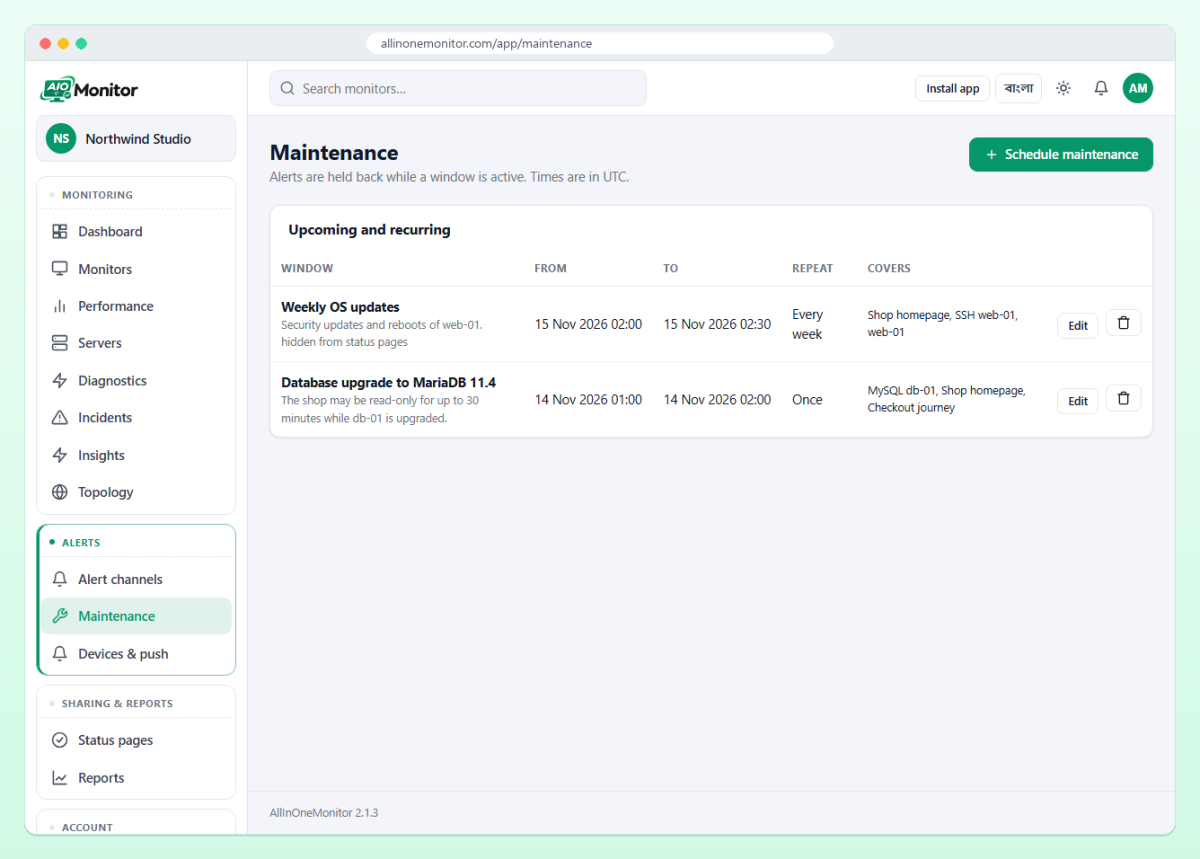
Below the form, windows are grouped as Active now (with an "alerts held" badge), Upcoming and recurring and Past, each with its start, end, repeat rule and what it covers. Members who may manage alert channels (owners, administrators and managers by default) can create, edit and delete windows; see team roles.
One-off and repeating windows
A one-off window suits a planned migration. Repeating windows suit routine work: a nightly backup that slows the site, a weekly database vacuum, a monthly patch reboot. A repeat keeps the same time of day and the same length as the first occurrence, so a window from 02:00 to 02:30 set to Every week covers 02:00 to 02:30 on that weekday from then on.
Cover only what the work touches
"All monitors" is tempting, but it also silences monitors that have nothing to do with the work. If you upgrade the database server, cover that server, its MySQL monitor and the sites that depend on it. Your marketing site on another host should still alert if it fails during those 30 minutes.
Show a maintenance notice on your status page
Customers handle planned downtime much better when they hear about it in advance. With Show on status pages ticked, a window appears on the status page as upcoming before it starts and as active while it runs, with its name and description. While it is active, the page header shows Maintenance instead of Operational, Degraded or Down.
A good status page maintenance notice answers three questions: what is affected, for how long, and what users should do. For example: "Checkout and order history will be unavailable for up to 30 minutes while we upgrade the database. Browsing the shop is not affected." Avoid internal jargon such as server names. If you are building a public page for the first time, our guide to a status page for SaaS covers components, history and subscribers.
Leave the Status pages boxes empty to show the notice on every page of the organisation, or tick the pages that matter, for example only "Northwind Status" when an internal page should stay quiet. Untick Show on status pages for purely internal work; the list then marks the window "hidden from status pages". For wording tips, read our incident communication guide, and see status pages for how the page decides its overall state.
Pause alerts during a deployment, automatically
Manual windows work for planned events. For deployments, let the pipeline do it. A token with the monitors:write scope can create a window through the API just before the deploy starts:
curl -X POST https://your-domain/api/v1/maintenance \
  -H "Authorization: Bearer YOUR_TOKEN" \
  -H "Content-Type: application/json" \
  -d '{"name":"Deploy","starts_at":"2026-11-12 14:00:00","ends_at":"2026-11-12 14:15:00","monitor_ids":[42,43],"show_on_status":false}'
Times in the API are UTC. The answer contains the window's id; when the deploy finishes early, DELETE /api/v1/maintenance/{id} ends it at once. Our uptime monitoring API guide covers tokens and scopes in detail.
Tip: Keep deployment windows short and specific. A 15-minute window on the affected monitors is better than an hour on everything, because a real failure after the deploy should page you as soon as possible.
When the window ends
Alerts are sent when a status changes. If a monitor went down during the window and is still down when it ends, the down alert that was held back is not sent again later. Before you call the work done, open the Dashboard and check that everything is Up. If you use escalation, an incident that is still open and unacknowledged reaches the escalation channels once the window is over and the escalation time has passed, which is a useful safety net.
Maintenance window or pause?
| Maintenance window | Pause | |
|---|---|---|
| Checks | Keep running | Stop; queued checks are dropped |
| History | Complete | Gap while paused |
| Ends | Automatically at the end time | When someone clicks Resume |
| Best for | Planned work with a known time | A monitor you do not need for a while |
A forgotten pause is a classic way to miss an outage weeks later. A window cannot be forgotten: it ends on its own.
Good habits for planned maintenance
- Schedule the window when the work is planned, not five minutes before, so the status page shows it as upcoming.
- Name windows after the work ("PHP 8.3 upgrade"), not the date, so the past list reads like a change log.
- Use repeating windows for routine jobs instead of re-creating them by hand.
- Keep at least one route to a human for problems outside the window's scope.
See how maintenance windows fit with status pages, incidents and alert channels on the features page.
Frequently asked questions
Do monitors keep checking during a maintenance window?
Yes. Checks, results, incidents and webhooks continue; only notifications to alert channels are held back while the window is active.
Can a maintenance window repeat every week?
Yes. Set Repeat to Every week; each occurrence keeps the same time of day and length. Every day and Every month are available too.
Will visitors see the maintenance on my status page?
If Show on status pages is ticked, the window is listed as upcoming before it starts and as active while it runs, and the page header shows Maintenance.
Can I create a maintenance window from a deployment script?
Yes. POST to the maintenance endpoint of the REST API with a token that has the monitors:write scope, and delete the window when the deploy is done.
Plan the work, skip the 3 a.m. pages
Schedule maintenance windows, keep your history complete and tell customers about planned work on your status page.