
Good incident communication means telling affected customers early that you know about a problem, updating them on a predictable rhythm until it is fixed, and closing with a short explanation of what happened. The four standard stages are Investigating, Identified, Monitoring and Resolved, and each update should say what users see, what you are doing and when they will hear from you next.
Key takeaways
- The first public update matters most: post it within minutes, even if all you can say is "we are investigating".
- Every update answers three questions: what is affected, what are we doing, when is the next update.
- In AllInOneMonitor, incidents open automatically when a monitor goes down, and you post updates from the incident's Timeline.
- Updates marked Show on status pages appear on your status page, and subscribers receive incident updates by e-mail.
- Record the cause and the fix in the incident's Root cause notes; that is the start of your postmortem.
Why communication matters as much as the fix
During an outage, customers do not see your dashboards. They see an error page and silence. Silence is what turns a 20-minute outage into a flood of support tickets, angry posts and lost trust. A short, honest update does the opposite: it tells people the problem is known, saves them from troubleshooting their own connection, and gives your support team one link to share.
Communication also helps the team. Writing "what we know" every 30 minutes forces clarity, and the timeline you build becomes the raw material for the postmortem.
How incidents start in AllInOneMonitor
Most incidents open by themselves. When a monitor is confirmed Down, an incident titled "Down: monitor name" opens with severity major; a Degraded monitor (failing from only some locations) opens "Degraded: monitor name" as minor. The first entry carries the error the check returned, and when the monitor recovers the incident resolves itself with its duration and the note "Recovered automatically."
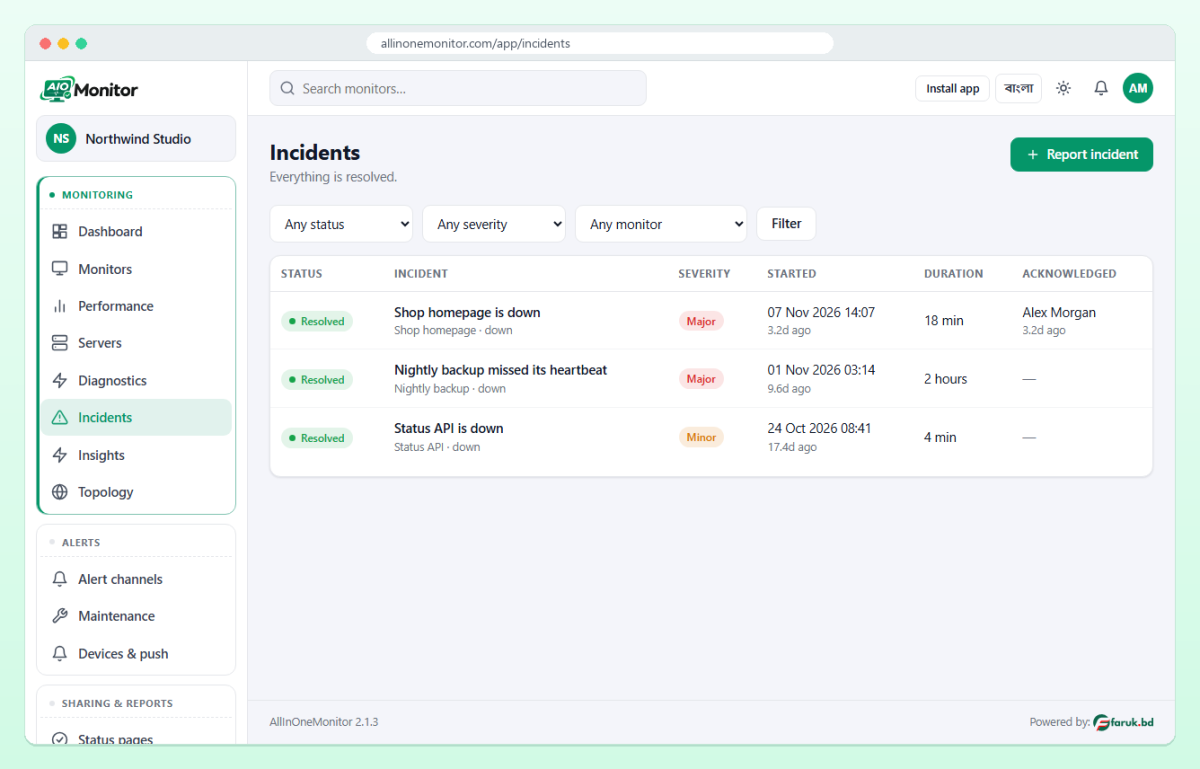
For problems no monitor can see, such as a payment provider outage, a slow support inbox or planned work, open one by hand: go to Incidents, click Report incident, and fill in the Title, Severity (Minor, Major or Critical), the Affected monitors if any, and the Initial message. Tick Show the first update on status pages if customers should see it, then click Open incident. Manual incidents also appear on your status pages even when they are not tied to a monitor.
The four stages, and what to say at each
AllInOneMonitor uses the same status workflow most status pages use. Here is what each stage means and what a good update contains.
| Status | Meaning | What the update should say |
|---|---|---|
| Investigating | Something is wrong and being looked at | What users are seeing, that you are on it, when the next update comes |
| Identified | The cause is known | The cause in plain words, the fix being applied, an honest time estimate if you have one |
| Monitoring | A fix is in place and being watched | That service should be back, what to do if users still have problems |
| Resolved | It is over | Confirmation, the time window, a short cause, and whether a postmortem will follow |
Status page incident templates
Copy and adapt these. Replace the parts in brackets, keep the rest short.
INVESTIGATING
We are seeing [errors when loading the checkout / slow page loads]
for some customers since [14:05 UTC]. We are investigating and will
post an update within 30 minutes.

IDENTIFIED
The problem is caused by [a failed database server]. We are
[switching to the standby server] now. Checkout may keep failing
until this is complete. Next update by [15:00 UTC].

MONITORING
A fix is in place and checkout is working again. We are watching
closely. If you still see errors, please reload the page or contact
support at [address].

RESOLVED
This incident is resolved. Between [14:05] and [14:52 UTC] some
customers could not complete checkout because [cause]. We will
share what we are changing to prevent this within [2 working days].
Posting updates from the incident page
- Open the incident from Incidents or from the monitor's page.
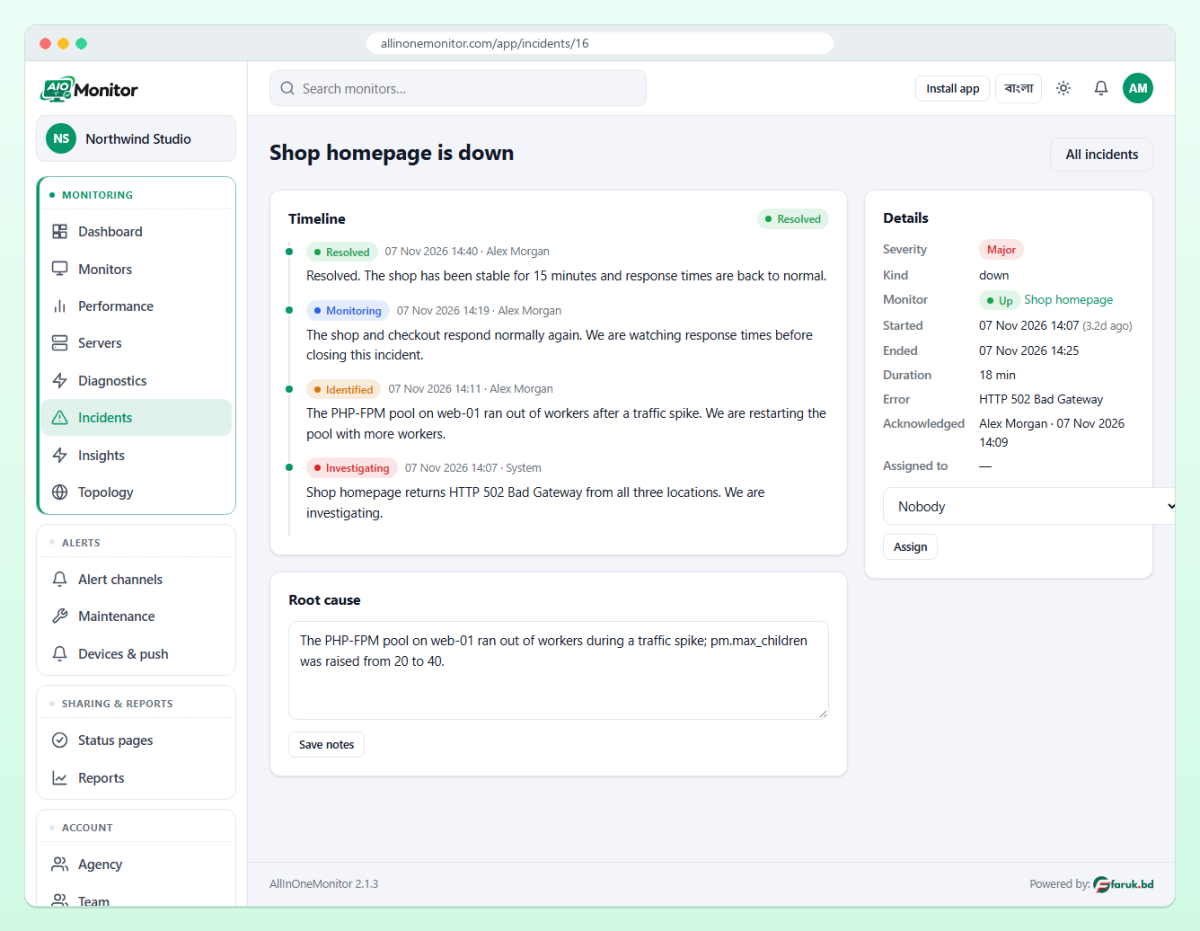
- Click Acknowledge so the team knows someone owns it. If your organisation uses escalation, this also stops the escalation message. Use Assign to hand it to a specific person.
- In the Timeline card, pick the new Status, write the Message, and keep Show on status pages ticked for a customer-facing update.
- Click Post update. The update joins the timeline with its time and author; setting the status to Resolved closes the incident and records its duration.
Each update is also sent as the incident.updated webhook event, so you can forward it to your own tools. Unticked updates are marked internal on the timeline and are not shown on status pages. Even so, write every update as if a customer could read it, and keep sensitive detail in the root-cause notes described below. The incidents documentation lists every option.
Where customers see your updates
A status page is the natural home for incident communication. It lists the incidents of the monitors and servers it shows, plus your manual incidents, with their public updates, for the history period you choose. Its header shows one overall state: Operational, Degraded, Down or Maintenance. With subscriptions switched on, visitors can subscribe by e-mail and receive incident updates that concern the page, with an unsubscribe link in each message. Our guide to building a status page for SaaS covers the setup, and the status page documentation lists every field.
Planned work belongs on the same page, but as a maintenance window rather than an incident: it appears as upcoming ahead of time, and alerts are silenced while it runs. See how to use a maintenance window.
Customer communication during an outage: practical rules
- Post the first update fast. Ten minutes is a good target. You do not need the cause yet.
- Describe symptoms, not systems. "Some customers cannot log in" beats "auth cluster node 3 is unhealthy".
- Give the next update time and keep it. Every 30 to 60 minutes during a major incident, even if nothing changed.
- Be careful with estimates. A missed ETA hurts more than no ETA. Promise the next update, not the fix.
- Use UTC or name the time zone. Your customers may not share yours.
- One voice. Decide who writes updates; the person fixing the problem should not also be the person writing them during a big incident.
- Do not resolve too early. Use Monitoring until you are confident; reopening a "resolved" incident looks worse than a longer Monitoring phase.
Tip: Set severity honestly. A minor incident for a slow admin page and a critical one for a full checkout outage help customers judge whether they need to act, and they help you when you review incidents later.
Closing the loop: a short postmortem
After a significant incident, customers and your team both want to know it will not happen again. A postmortem does not need to be long. Four parts are enough: what happened and for how long, the cause, how it was fixed, and what you are changing.
Start it while the details are fresh. The incident page has a Root cause card where you record "what caused it and what prevents it next time" and click Save notes. Combined with the timeline and the duration, that is most of your postmortem. If the Insights module has root-cause suggestions for the incident, such as a parent dependency that was down, they appear in the incident analysis, labelled as suggestions to verify. For the numbers, the Reports page shows incidents and downtime per monitor for any period, which our uptime SLA calculation guide explains.
Frequently asked questions
How often should I post incident status updates?
Post the first update within minutes, then every 30 to 60 minutes during a major incident, and always at each change of status. Say when the next update will come and keep that promise.
Can I report an incident that no monitor detected?
Yes. Click Report incident on the Incidents page, give it a title, severity and initial message, and it can appear on your status pages even when no monitor is attached.
What should a status page incident message include?
What users are experiencing, what you are doing about it, and when the next update will be posted. Add the cause and the time window in the final Resolved update.
Do incidents resolve themselves when the site recovers?
Automatic incidents opened by a monitor resolve automatically when it recovers, with the duration recorded. Manual incidents stay open until you post a Resolved update.
Turn outages into updates customers trust
Monitor your services, open incidents automatically and keep customers informed from one status page. Compare plans on the pricing page.