

Website monitoring for agencies needs more than a long list of monitors: each client needs its own space, its own alerts and its own reports, while you keep one login and one bill. In AllInOneMonitor an organisation of type Agency or Reseller creates client organisations, shares its plan's limits with them as one pool, shows them your brand, sends branded uptime reports and, when the plan allows, invoices them at your own prices.
Key takeaways
- Every client is a full organisation with its own monitors, servers, status pages, alert channels and users.
- Your owners and admins can open any client without an invitation, and return with one click.
- The agency plan's monitors, servers and status pages form one shared pool; allocations cap individual clients.
- White label replaces the platform's name, logo and colours with yours, up to a panel on your own domain.
- Read-only report links show a client's uptime, downtime and incidents without a login.
Why agencies outgrow a single account
Most agencies start by adding client sites to their own account, following the usual website uptime monitoring advice. It works for five sites and falls apart at fifty. Alerts for one client land in the same channel as everyone else's, a client who wants to see their uptime has to be given access to everything, and when a contract ends, untangling that client's monitors is a manual job.
The fix is structure. Separate client workspaces keep alerts, status pages and people apart, while the agency still sees the whole portfolio in one place. That is how the agency features in AllInOneMonitor are designed.
Turn your organisation into an agency
An organisation becomes an agency when its type is Agency or Reseller; both work the same way. The owner sets it under Team → Organisation → Type. An Agency item then appears in the panel menu for members who may manage the team, with four tabs: Clients, White label, Billing (or Billing & revenue with reseller billing) and Shared reports.
What the agency can do comes from its plan: how many client organisations it may create, whether white label and reseller billing are included, and the size of the shared pool. Compare the options on the Pricing page.
Add a client and monitor client websites
- Open Agency and, on the Clients tab, click New client.
- Enter the Client name, an optional Client owner e-mail (that person is invited as owner) and the Allocation.
- Click Create client, then Open client to switch into the new organisation.
- Add the client's monitors, servers, alert channels and status page exactly as you would in your own organisation.
- Use Back to your agency in the menu to return to the portfolio.
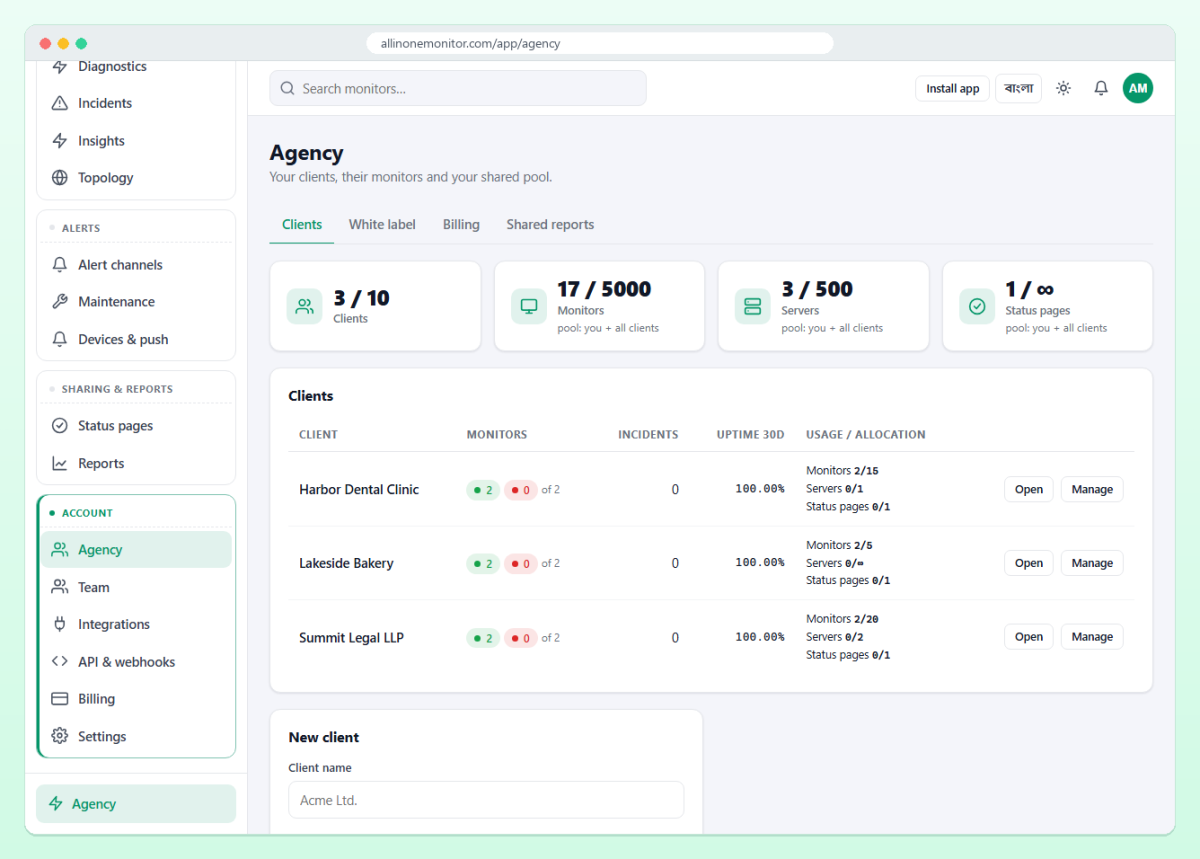
The Clients tab lists every client with monitors up and down, open incidents, uptime over 30 days and usage against allocation, plus stat cards for the whole pool. It is the morning view of your portfolio: one red number tells you which client to open first.
When you open a client, you act there with the admin role (everything except billing). Manage on a client lets you rename it, change its allocation, keep Internal notes that only your agency sees, and invite the client's own users with any role. Roles are explained in the team documentation.
Tip: Give each client its own alert channels, for example a Slack channel shared with the client's developers, and keep your agency's on-call channel as the escalation route. Alerts then reach the people who can act on them.
The shared pool and allocations
The agency plan's limits for monitors, servers and status pages are one pool: your own items and every client's items count together. When the pool is used up, nobody in the agency tree can add more of that kind.
An allocation caps one client, for example 20 monitors, 2 servers and 1 status page. An allocation of 0 means no own cap, so the client draws on the pool freely. A client at its allocation sees a message asking the agency for more. Allocations are useful for matching what a client pays for: a small retainer gets a small allocation, and a client who outgrows it becomes an upsell conversation instead of a surprise.
White-label monitoring
With white label in your plan, the White label tab lets you put your brand in front of clients:
- Show my brand to my clients switches it on;
- Brand name, Support e-mail, Logo and Logo for the dark theme;
- Accent colour and Hover colour;
- Address on invoices and e-mails;
- Hide "powered by" and the platform version in client panels;
- Panel domain, such as
monitor.your-agency.com.
Once active, client panels, shared reports, alert e-mails to clients, invitations and invoice e-mails use your name, logo, colours and footer. For the panel domain, add a CNAME (or an A record) at your DNS provider, make the web server answer for that name with a certificate, save the domain and press Check DNS of your domain. The application cannot create DNS records or certificates itself; until both exist, the domain does not open.
With white label, client status pages can also run on the client's own host name, such as status.client.com. Our guide to a status page for SaaS walks through components and custom domains.
Client reports that show your value
Clients rarely see monitoring when it works. A monthly report changes that. On a client's page, under Shared reports, click Create a report link and set:
- Title (by default "Uptime report - client");
- Period: Always the last days (7, 30, 90 or 365 days, moving with today) or Fixed dates of at most one year;
- the monitors to include, or none ticked for all of the client's monitors;
- Link expires on, or blank for never.
The link opens a read-only page in your brand, without a login: average uptime, number of monitors, incidents and downtime, a table per monitor and, for periods up to 92 days, a daily uptime bar. Print / PDF opens the browser's print dialog. Every view is counted, and Revoke stops a link at once. If your contracts promise an uptime figure, read our uptime SLA calculation guide before you send the first report. For reports e-mailed on a schedule, see reports.
Reseller uptime monitoring: bill clients yourself
With reseller billing in your plan, the agency sells plans to its clients and collects the money itself; the platform is not involved in those payments. Under Your prices you set a currency, a tax percentage and a monthly and yearly price for each plan you offer, and under How clients pay you the payment method and instructions shown on every invoice.
Invoices are numbered RS-YYYYMM-NNNNN, due in 7 days and e-mailed to the client's owners in your brand. The client pays outside the platform, enters a reference and optionally uploads a proof of payment, and you Approve or Reject it under Payments to approve. Approval puts the client on the plan for the paid months. Only the agency's owner can open the billing tab.
Suspend and reactivate
When a client stops paying, Suspend pauses all of its running monitors and limits its users to billing and settings. Reactivate resumes exactly the monitors the suspension paused, so nothing the client had paused on purpose comes back by accident. Your staff can still open a suspended client. The complete reference is in the agencies and resellers documentation.
Frequently asked questions
Can my clients log in and see only their own websites?
Yes. Each client is a separate organisation; users you invite there see only that client's monitors, servers, status pages and incidents.
Can I hide the monitoring platform's brand from clients?
With white label in your plan, client panels, report links and client e-mails use your brand name, logo and colours, and you can serve the panel on your own domain.
How do I send a client an uptime report?
Open the client, create a report link under Shared reports with a period and an optional expiry date, and send the link. It needs no login and can be printed to PDF.
Do client monitors count against my plan?
Yes. Monitors, servers and status pages of the agency and all its clients share one pool from the agency plan; allocations can cap each client.
Monitor every client from one place
Create client workspaces, put your brand on the panel and send uptime reports that show the work you do.