
Windows server monitoring with AllInOneMonitor uses a small, read-only PowerShell agent that runs as a scheduled task, collects CPU, memory, disk, network, process and service data every minute and posts it to your panel over HTTPS. You install it with three PowerShell commands, then set thresholds and pick the Windows services, IIS and SQL Server services you want alerts for.
Key takeaways
- The Windows agent needs PowerShell 5.1 or newer and is installed from an Administrator PowerShell window in three commands.
- It runs as the scheduled task AIM Agent under SYSTEM, makes outbound requests only and never accepts commands.
- Besides CPU per logical processor, memory, disks and network, it tracks the Windows services you list, IIS (W3SVC) and every SQL Server engine and agent service.
- Thresholds such as CPU, memory and disk percentages must be crossed for several samples in a row before an alert goes out.
- It collects less than the Linux agent: no Docker, SMART, RAID, temperature or database collectors.
What the Windows monitoring agent collects
The agent is a plain PowerShell script you can read before you run it. Every sample contains:
| Area | Data |
|---|---|
| System | Host name, OS version, architecture, uptime, process count |
| CPU | Total usage, usage per logical processor, cores and model; a load figure derived from CPU usage |
| Memory | Memory and page file |
| Disks | Every local logical disk with size, used space and percentage |
| Network | Bytes per second in and out per interface |
| Processes | The top 15 processes |
| Services | The Windows services you list: running becomes active, stopped becomes inactive |
| IIS | W3SVC state, current connections, requests per second and number of sites, when IIS is installed |
| SQL Server | State of every MSSQLSERVER, MSSQL$<instance>, SQLSERVERAGENT and SQLAgent$<instance> service |
| Updates | Reboot required, and pending Windows updates when you switch that on |
If you run Linux servers as well, the Linux server monitoring agent covers more ground (Docker, SMART, RAID, databases, mail queues). The honest list of differences is in known limitations.
Install the agent with PowerShell
- In the panel open Servers and click Add server. Give it a name (for example "win-app-01"), optionally a location, provider, group and tags, and list the Services to watch.
- Save. The server page shows Install the agent with a Linux command and a Windows (PowerShell as Administrator) block that already contains your one-time registration token.
- On the server, open PowerShell with Run as administrator, change to a folder where the script should live, and paste the three lines (use Copy next to the block).
- Leave the server page open. It refreshes itself once the agent has registered, and the first sample arrives within a minute.
The block looks like this, with your own address and token:
Invoke-WebRequest -Uri https://your-domain/api/agent/agent.ps1 -OutFile aim-agent.ps1
.\aim-agent.ps1 -Register -AppUrl https://your-domain -Token REGISTER_TOKEN
.\aim-agent.ps1 -Install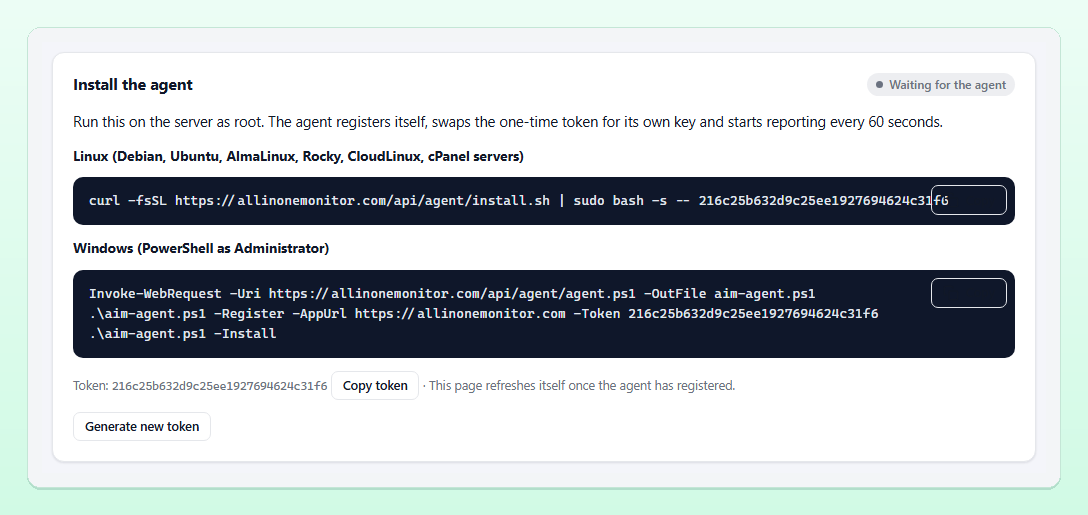
The registration token works once. The agent swaps it for its own long-lived token, and the platform stores only a hash of that. If you lose the command before installing, Generate new token on the server page creates a fresh one and the old one stops working.
Tip: If your execution policy refuses to run the downloaded script in that window, allow it for the current session only with Set-ExecutionPolicy -Scope Process Bypass and run the lines again. The setting ends when you close the window.
What -Install does
-Install creates the scheduled task AIM Agent, which runs aim-agent.ps1 -Run every minute as SYSTEM. Configuration, including the agent token and its update key, and the offline spool live in %ProgramData%\AIM-Agent.
Switches worth knowing
-Collectprints one sample as JSON: exactly what would be sent.-Statusshows the agent's state.-SelfUpdatelooks for a signed update now (only when the server allows updates).-Uninstallremoves the scheduled task and the folder.
Monitor Windows services, IIS and SQL Server
Service monitoring is where Windows server monitoring earns its keep. A web app can return errors for hours because a background worker service stopped after a reboot, while CPU and memory look perfect.
List the services under Services to watch on the server form, one per line. The agent looks them up by their service name, which is often shorter than the display name you see in the Services console; Get-Service in PowerShell shows both. The server page lists every watched service with its state and when it last changed, and a change to a bad state raises a service alert, with a recovery message when it runs again.
You do not need to list IIS or SQL Server. When IIS is installed, the agent reports the W3SVC service with current connections, requests per second and the number of sites, which gives you basic IIS server monitoring without extra setup. Every SQL Server engine and SQL Server Agent service is found automatically. Both are tracked and alerted like the services you list.
Thresholds and alerts
Under Edit server → Thresholds you set the lines a server must stay under. The defaults are a sensible start:
| Threshold | Default |
|---|---|
| CPU warning / critical % | 80 / 95 |
| Memory warning / critical % | 85 / 95 |
| Disk warning / critical % | 85 / 95 |
| Offline after (minutes) | 5 |
| Samples in a row | 3 |
A value must stay over the line for Samples in a row consecutive samples before an alert goes out. With one sample a minute and the default of 3, a CPU spike has to last about three minutes before anyone is paged, which filters out short bursts from scheduled jobs. When the value drops back you get a "back to normal" message and the alert is marked resolved.
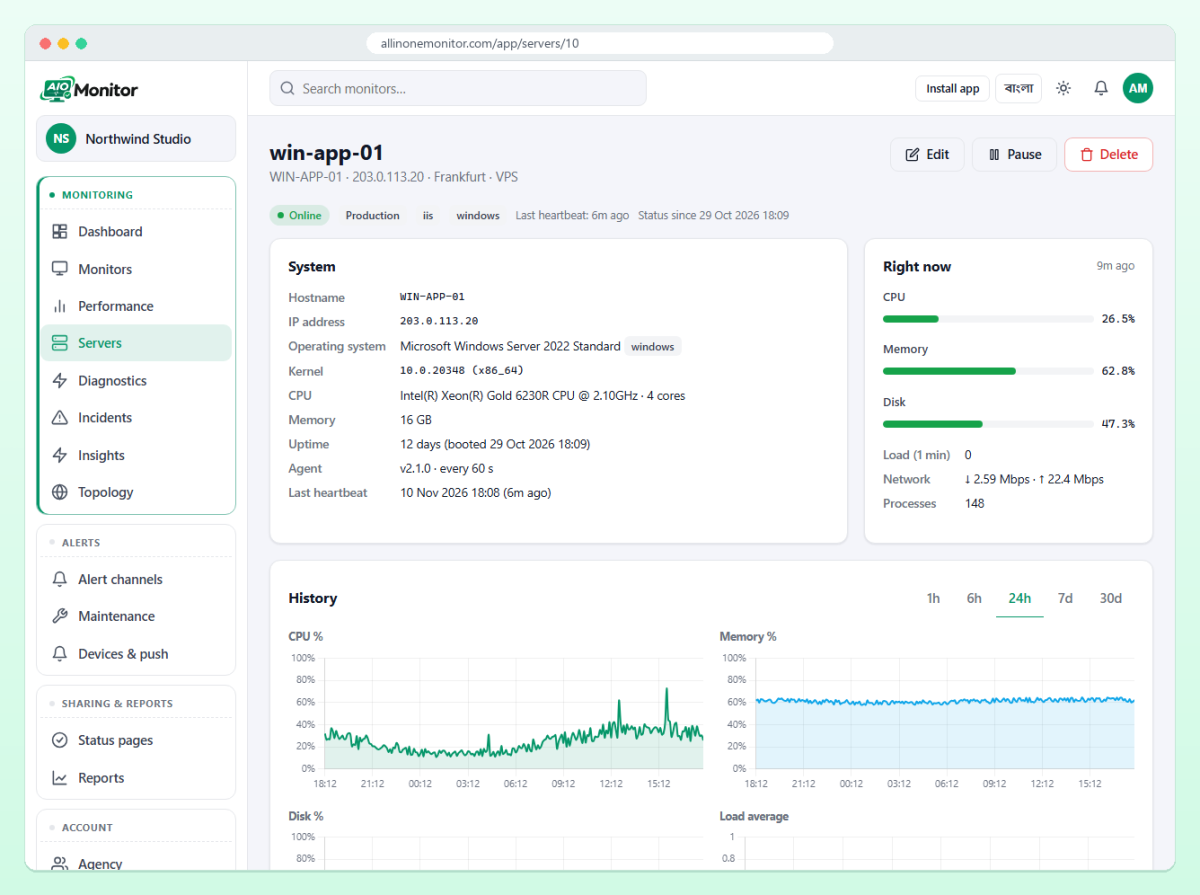
Other alerts need no threshold: offline when no sample arrives for the offline time, online again, reboot when uptime resets, and service state changes. They go to the channels you tick on the server form, or to the organisation's default channels. Route them to chat or SMS as described in our guide to Telegram, Slack and Discord alerts; every event is listed in the alerts documentation.
Updates, reboots and patch windows
The agent always reads whether a reboot is required. To count pending Windows updates as well, tick Count pending Windows updates under Edit server → Agent. The Windows Update search is slow, so it runs at most every 6 hours.
Patch day brings planned reboots, and a reboot alert at 3 a.m. for work you scheduled yourself is noise. Create a window under Maintenance that covers the server and its monitors; checks keep running, but channels stay quiet. Our guide to the maintenance window shows how to make it repeat.
Security model of the agent
- Read-only: the agent collects and posts. From the platform's answers it takes only the interval, the service names, the paused flag and update settings; it never runs anything it is sent.
- Outbound only: HTTPS requests to your panel, no inbound port, no remote shell.
- Signed updates: with Update the agent automatically ticked, a new script is installed only when its HMAC-SHA256 signature matches the key received at registration and it passes the PowerShell parser.
- Spool when offline: when the panel cannot be reached, samples are kept in the
spoolfolder (bounded to about 7 days) and sent in batches later.
The full reference, including the uninstall steps, is in the servers and agent documentation. How many servers you can add depends on your plan; see Pricing.
Frequently asked questions
Which Windows versions does the agent support?
Any Windows machine with PowerShell 5.1 or newer where you can run PowerShell as Administrator and create a scheduled task, which includes current Windows Server releases.
Does the Windows agent open a port or allow remote commands?
No. It only makes outbound HTTPS requests to your panel and never executes anything the platform sends back.
Can I monitor IIS without configuring anything?
Yes. When IIS is installed the agent reports the W3SVC service state, current connections, requests per second and the number of sites, and alerts when the service stops.
How do I remove the agent?
Run the agent script with the -Uninstall switch in an Administrator PowerShell window. It removes the scheduled task and the agent folder; then delete the server in the panel if you no longer need its history.
Put your Windows servers on the dashboard
Add a server, paste three PowerShell lines and get alerts for CPU, disks, services, IIS and SQL Server.