

Keyword monitoring loads a web page on a schedule and checks that a word or phrase is present (or absent) in what the server sent back. It catches the failures a status code hides: a page that returns 200 but shows a database error, a shop with no "Add to cart" button, or a homepage replaced by an attacker's message.
Key takeaways
- A 200 OK only means the server answered; a keyword check confirms it answered with the right page.
- Use Must be present for text that proves the page works, and Must be absent for error messages and defacement phrases.
- The keyword is searched in the HTML the server returns, case-insensitively unless you tick Case sensitive.
- Alert when the content changes adds content change detection on top of the keyword rule.
- Pages built by JavaScript need a Browser monitor, which searches the rendered page.
Why status codes are not enough
A plain uptime check asks one question: did the server answer with an acceptable status code? Many real failures pass that test:
- A CMS that loses its database connection often shows "Error establishing a database connection" with status 200 or 500, depending on the software and its caching layer.
- A PHP application can print "Fatal error" halfway through the page and still send 200.
- A CDN or reverse proxy can serve a cached or default page while the origin is broken.
- A defaced site returns 200 with the attacker's content, because from the server's point of view nothing is wrong.
- A deployment can ship a page with an empty product grid or a missing checkout button.
In each case the words on the page are wrong. That is exactly what keyword monitoring looks at. It is a natural next step once basic website uptime monitoring is in place.
Must be present or must be absent
Every keyword monitor has one rule, and choosing the right one is most of the work.
Must be present: prove the page works
Pick text that only appears when the page is fully rendered by your application, ideally near the bottom or inside a dynamic part. Good choices:
- "Add to cart" on a product page, or the name of a product that is always listed;
- a footer line generated by your application, such as the copyright line;
- "Sign in" on a login page;
- a unique phrase from the homepage hero text.
Avoid words that also appear on error pages or in the site's navigation, such as "Home" or your brand name. The keyword can be up to 500 characters, so a full sentence is fine and makes accidental matches unlikely.
Must be absent: catch errors and defacement
Here you list text that should never appear. Typical candidates:
- "Fatal error", "Parse error" or "Stack trace" for application crashes;
- "Error establishing a database connection" or "Too many connections";
- "Maintenance" or "Under construction", if those pages should only appear during planned work;
- "Index of /", which shows a directory listing where your homepage should be;
- phrases attackers commonly leave behind, such as "hacked by", or spam words that have no place on your site.
Each monitor holds one keyword, so create one monitor per phrase you care about, and put them in a group so they stay together in the list.
Setting up a keyword monitor
- Open Monitors and click Add monitor.
- Under What to monitor, choose Keyword.
- In Basics, give it a descriptive Name ("Homepage content") and enter the full URL, including
https://. - Choose the Check interval, Timeout (seconds) and Confirmations.
- In the Request card you can keep the defaults. Change the method, headers or Expected status codes only if the page needs it.
- In the Keyword card, enter the Keyword or phrase, choose the Rule (Must be present or Must be absent) and tick Case sensitive if capitalisation matters.
- Press Test now. If the result says the keyword was not found, check the page source before changing anything else.
- Pick alert channels and click Create monitor.
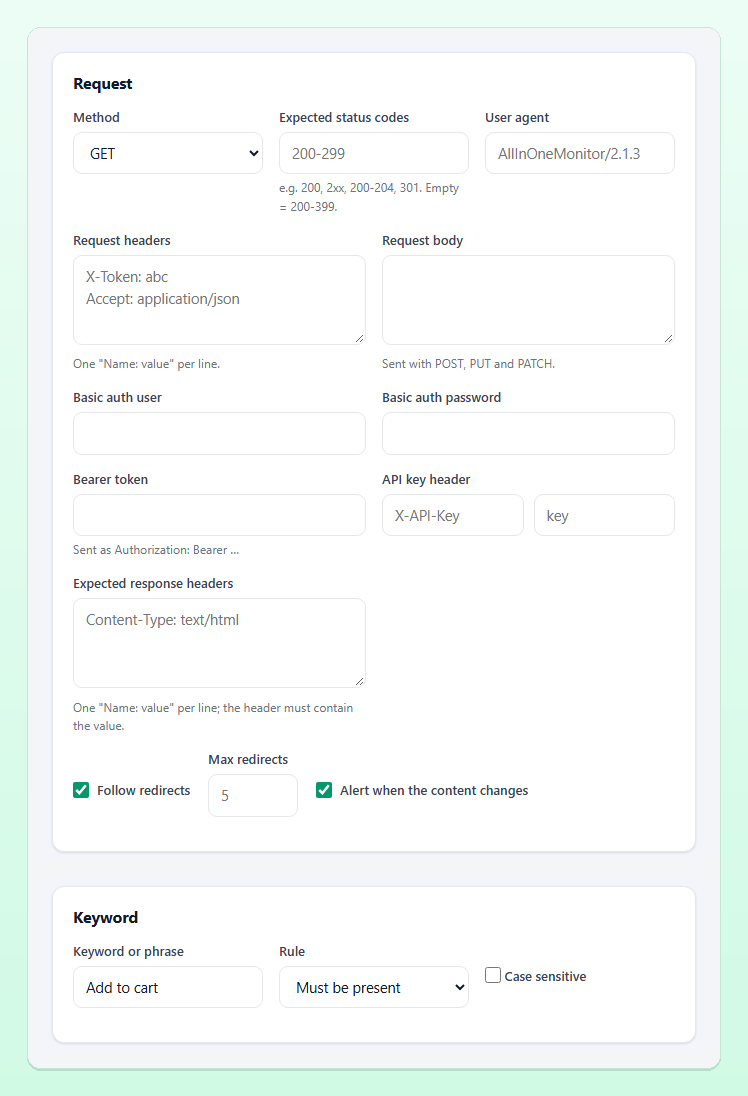
The status code check still runs first. If the server answers with an unexpected code or times out, the monitor is Down for that reason; the keyword is only judged when the request itself succeeded. A failed keyword check says why in plain words, for example Keyword "Add to cart" not found or Keyword "hacked by" found but should be absent, and that text appears in the alert and in the incident.
Getting the keyword to match reliably
The keyword is searched in the response body: the HTML exactly as the server sent it, before any browser runs it. Three things follow from that.
- Look at the source, not the screen. Text that looks like "Terms & Conditions" on screen may be written as
Terms & Conditionsin the HTML, and a phrase can be split by a tag such as<strong>. Copy the keyword from the page source. - Case is ignored by default. "add to cart" matches "Add to Cart". Tick Case sensitive only when the difference matters.
- JavaScript-rendered text is invisible to this check. If the phrase is added by a script after the page loads, the keyword monitor will not see it. Use a Browser monitor instead: it loads the page in a headless Chrome and its Page must contain rule searches both the HTML and the visible text of the rendered page. See the synthetic monitoring docs.
Tip: For a page behind a login, a single keyword check is usually not enough. A Transaction monitor can sign in and then assert text on the next page; our guide to synthetic transaction monitoring shows how.
Content change detection
Defacement does not always contain a phrase you can predict. For that, combine the keyword rule with content change detection. In the Request card of an HTTP(S), Keyword or API monitor, tick Alert when the content changes. On every check the visible text of the page (the HTML with its tags removed and whitespace normalised) is fingerprinted. When the fingerprint differs from the previous check, a Content changed alert is raised, at most once an hour per monitor, and it reaches channels that take the Page content changed event.
This works best on pages that are meant to stay the same: a landing page, a legal page, a static marketing site, a download page with checksums. It works badly on pages that change by design. A page that shows the current time, a random testimonial or a live price list changes on every check, and you will receive a change alert every hour. For pages like that, rely on keywords or, for JSON endpoints, on the rules described in our API monitoring guide.
A simple defacement monitoring setup
For a typical business site, this set of monitors covers most of what can go wrong with the content:
| Monitor | Rule | Purpose |
|---|---|---|
| Homepage, "a sentence from your hero text" | Must be present | The real homepage is being served |
| Homepage, "hacked by" | Must be absent | Common defacement signature |
| Homepage, "Fatal error" | Must be absent | Application crash |
| Product or pricing page, "Add to cart" or a price label | Must be present | The money page still works |
| A static legal page | Content change detection | Any unexpected edit |
Keep the interval of the "must be present" monitors short, since they double as uptime checks. The "must be absent" ones can run less often if your plan's monitor count is tight. For the rest of the HTTP options, such as headers, redirects and the certificate check, see the monitor documentation.
What happens when a keyword check fails
A keyword failure is treated like any other Down result. After the number of Confirmations you chose, the monitor turns Down, an incident opens with the error text, and your channels are notified. When the right text is back, the incident resolves automatically with its duration. If you show the monitor on a status page, visitors see the outage there too, so for defacement you may prefer to keep content monitors off the public page and alert only your team.
Frequently asked questions
Can keyword monitoring detect website defacement?
Yes, in two ways: a "must be present" keyword fails when your real content disappears, and a "must be absent" keyword fails when a known defacement phrase appears. Content change detection adds an alert for any change to the visible text.
Is the keyword search case-sensitive?
No, by default "Add to cart" also matches "add to cart". Tick Case sensitive in the Keyword card for an exact match.
Why does my keyword monitor say "not found" when I can see the text?
The check reads the HTML the server sends, so text added by JavaScript, or written with HTML entities or tags in the middle, will not match. Copy the phrase from the page source, or use a Browser monitor for rendered pages.
Can I check several words with one monitor?
Each keyword monitor holds one keyword or phrase. Create one monitor per phrase and keep them in a group.
Make sure your pages say the right thing
Add a keyword monitor to your homepage and your most important page, and know within minutes when the content breaks. Plans and limits are on the pricing page.