
WhatsApp alerts for website monitoring send a message to your WhatsApp number when a monitor goes down and again when it recovers. In AllInOneMonitor you add a WhatsApp alert channel with your phone number in international format, choose the events it should receive, and attach it to your monitors; the platform delivers through the WhatsApp provider its operator has configured.
Key takeaways
- WhatsApp is where many teams already talk, so an alert there is seen quickly, especially on phones.
- A WhatsApp channel needs only a name, a phone number in international format and the events to send.
- Unlike SMS, the WhatsApp message carries the full alert text and the link, not a 140-character summary.
- The same controls as every channel apply: events, cooldown, quiet hours, default and escalation.
- Every delivery attempt is logged with the provider's answer, so a missing message can be traced.
Why send uptime alerts to WhatsApp
An alert is only useful if someone sees it in time. For many small teams, agencies and shop owners, the app they check most often is WhatsApp, not their inbox or a team chat tool. A WhatsApp uptime alert lands next to their other conversations, makes the phone vibrate, and can be read at a glance.
It also fits teams whose working day happens on the phone: a developer on the move, a shop owner without a laptop, a client who wants to know when their site is down. In markets where WhatsApp is the default messenger, it is often the channel people actually respond to.
WhatsApp, SMS or a chat tool?
Each channel has a place. This comparison is about how they behave in AllInOneMonitor:
| SMS | Telegram, Slack, Discord | ||
|---|---|---|---|
| What you enter | Phone number | Phone number | Bot token and chat ID, or a webhook URL |
| Message content | Title, full message and link | Shortened to 140 characters plus the link | Formatted message with an open link or button |
| Needs mobile data | Yes | No | Yes |
| Best for | Individuals and small teams on the phone | Urgent alerts and escalation | Shared team channels |
Many teams use more than one: chat for the whole team, WhatsApp for the person on call, and SMS as a last resort. Our guides to SMS alerts when a website is down and to Telegram, Slack and Discord alerts cover the others.
Before you start
- A WhatsApp provider must be configured by the operator. The platform can send through GREEN-API (which links a WhatsApp account by scanning a QR code), the WhatsApp Cloud API from Meta, or a custom HTTP gateway. You do not need a provider account of your own.
- Check your plan. SMS and WhatsApp alerts are listed as a plan feature on the pricing page.
- Have at least one monitor. Any monitor type can send to WhatsApp: a website, an API, a port, a heartbeat, a server.
How to add a WhatsApp alert channel
- Open Alert channels and click Add channel.
- In the New channel card, choose WhatsApp as the Type.
- Give it a Name that says who receives it, for example "On-call WhatsApp".
- Enter the Phone number (international format): a plus sign, the country code and the number, such as
+8801711223344. Spaces and dashes are fine. - Under Events, tick what this person should hear about. Leaving all boxes empty sends every event.
- Set Cooldown (seconds) and quiet hours if you want them, and decide whether this is a Default channel or an Escalation channel.
- Click Add channel, then Test to send a sample message and confirm it arrives.
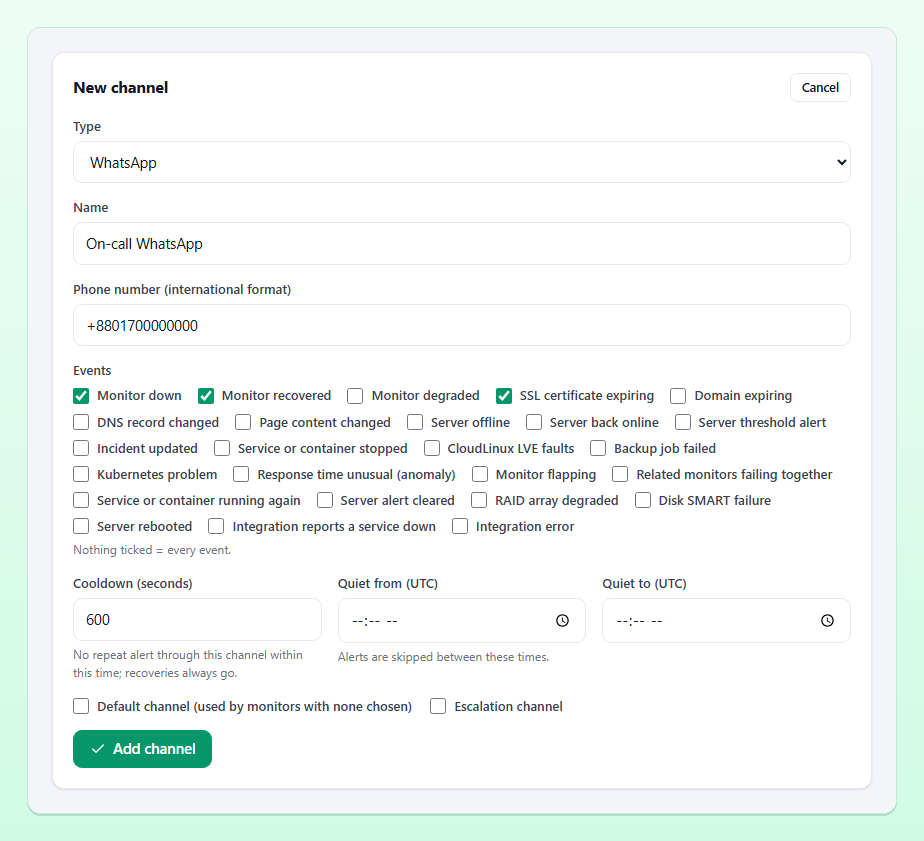
Then connect it to your monitors. Edit a monitor and tick the channel in its Alert channels card, or tick Default channel so every monitor and server without its own selection uses it.
Tip: Save the number the alerts come from in your phone's contacts with a clear name such as "Site alerts". The messages are easier to spot, and your phone is less likely to treat them as messages from a stranger.
What a WhatsApp notification looks like when your site is down
The built-in WhatsApp message has three parts: the alert title, the full message and a link to the monitor. For a down alert that is the monitor name, its address and the error the check returned; for a recovery it says the monitor is back up and for how long it was down:
🔴 DOWN: Shop homepage
Shop homepage (https://shop.example.com) is down: HTTP 503
https://your-monitor.example/app/monitors/12

✅ UP: Shop homepage
Shop homepage is back up after 6 min.
https://your-monitor.example/app/monitors/12
Because WhatsApp has no strict length limit, nothing is cut off, which makes it better than SMS for errors such as a failed JSON rule or a long certificate message. The operator can rewrite the wording of every WhatsApp text in the message templates, with a WhatsApp preview that follows the typing.
Choosing which events go to WhatsApp
Most teams start with every event and quickly regret it. A practical split:
- Send to WhatsApp: Monitor down, Monitor recovered, Server offline, Server back online, and possibly SSL certificate expiring and Domain expiring, which arrive at most once a day.
- Keep in e-mail or team chat: Page content changed, DNS record changed, Response time unusual (anomaly) and server threshold alerts, which are useful but rarely urgent.
If several monitors fail together, for example because they share a server, the platform sends one grouped notice instead of one message per monitor, and a flapping monitor sends a single notice and then waits until it is stable. Both features keep a WhatsApp chat readable during a bad hour. The alerts documentation lists every event.
Keeping WhatsApp alerts useful
Confirm before you alert
Set Confirmations on each monitor to 2 or more so a single failed check does not ping your phone. With several monitoring locations, the same field asks for agreement between locations. More on that in the monitor documentation.
Cooldown and quiet hours
Cooldown (seconds) skips further monitor alerts to the channel for that long after one was sent; recoveries always go through. Quiet from (UTC) and Quiet to (UTC) skip the channel inside a nightly window, again except for recoveries. Times are in UTC, so convert from your local time.
Maintenance windows
Planned work should not wake anyone. Create a window under Maintenance and no channel is notified while it is active, although checks and incidents are still recorded.
Escalation
If WhatsApp goes to the whole team, consider making it the first line and an SMS channel the escalation step: tick Escalation channel on the SMS channel and set Escalate after (minutes). When nobody acknowledges an incident in time, the escalation message goes out once.
When a WhatsApp message does not arrive
Open the channel on the Alert channels page. Its delivery log lists every attempt as sent, failed (with the provider's answer) or skipped (with the reason, such as cooldown or quiet hours). Common causes:
- The number is wrong or not on WhatsApp. Check the country code and that the number has a WhatsApp account.
- The event is not ticked in the channel's Events list, or the monitor uses other channels.
- The alert was held back on purpose: maintenance, a parent dependency that is down, a flapping monitor, or a grouped notice.
- A provider problem. Each WhatsApp provider has its own rules and limits, and a provider that links a phone needs that phone to stay connected. The provider's answer in the log tells the operator what to fix.
Failed deliveries are retried with back-off before they are given up, so a short provider hiccup usually resolves itself.
Frequently asked questions
Can I get a WhatsApp notification when my site is down?
Yes. Add a WhatsApp alert channel with your number in international format, tick Monitor down and Monitor recovered, and attach the channel to the monitor.
Do I need a WhatsApp Business account?
No. The platform sends through the provider its operator has configured; you only enter the number that should receive the alerts.
Can several people receive the same WhatsApp alert?
Each WhatsApp channel sends to one number. Create one channel per person and tick all of them on the monitor, or mark them as default channels.
Is WhatsApp better than SMS for uptime alerts?
WhatsApp carries the full message and suits people who live in the app; SMS works without mobile data. Many teams use WhatsApp for alerts and SMS for escalation.
Get your uptime alerts where you already chat
Add a monitor, connect a WhatsApp channel and send a test message in a few minutes.