
Cron job monitoring works the other way round from website monitoring: instead of the monitor calling your job, your job calls a unique heartbeat URL each time it finishes. If the call does not arrive within the expected interval plus a grace period, the monitor turns Down and alerts you. Your script can also report a failure straight away by adding a status to the URL.
Key takeaways
- Scheduled jobs fail silently; the only reliable signal is the absence of a "done" message.
- A heartbeat monitor is a dead man's switch: silence for longer than interval plus grace means Down.
- Ping after the job succeeds, not before it starts, so a crash in the middle is caught.
- Report known failures at once with
?status=fail&msg=…instead of waiting for the timeout. - Set the grace period to cover the normal variation in how long the job takes.
Why scheduled tasks need their own kind of monitoring
A website that breaks produces errors that someone sees. A cron job that breaks usually produces nothing at all. The backup script stops after a disk fills up, the invoice export dies on a changed API, the server was rebuilt and nobody copied the crontab, or the job runs fine but on the wrong server. Weeks later someone needs the backup, and it is not there.
You cannot probe a cron job from outside, because there is nothing to connect to. The answer is the "dead man's switch" pattern: the job proves it is alive by checking in, and silence becomes the alarm. AllInOneMonitor calls this a Heartbeat monitor.
How heartbeat monitoring works
- You create a Heartbeat monitor and tell it how often the job runs.
- The monitor gives you a unique URL of the form
https://your-monitor.example/hb/<token>. - Your job calls that URL every time it completes successfully.
- Once a minute, the platform checks how long ago the last call arrived. If it is longer than the expected interval plus the grace period, the monitor turns Down, an incident opens and your channels are alerted.
- The next successful call brings the monitor back Up and sends a recovery message.
Nothing is probed, so heartbeats need no monitoring location, and a single missed call is enough: there are no confirmations to wait for.
Create a heartbeat monitor step by step
- Open Monitors and click Add monitor.
- Choose Heartbeat in the What to monitor card.
- Give it a clear Name, such as "Nightly backup". Mention the server if the same job runs on several machines.
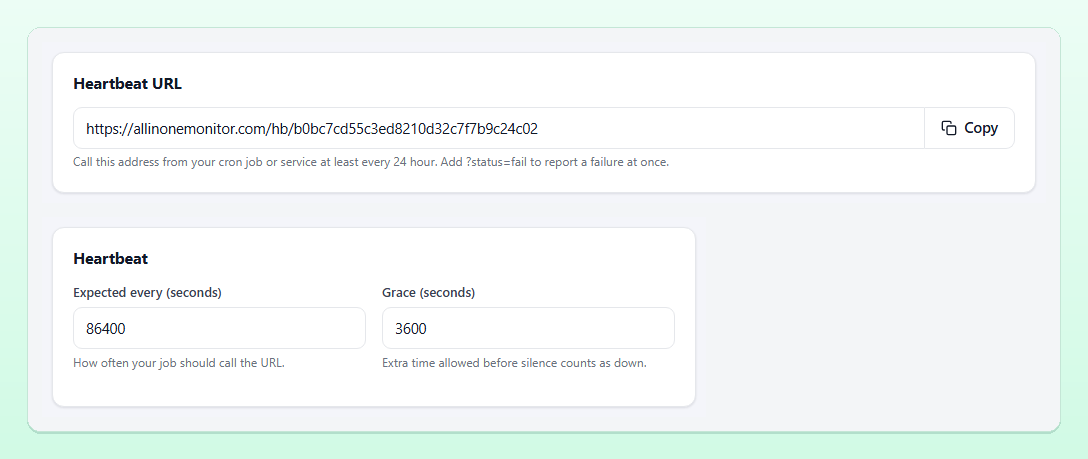
- In the Heartbeat card, set Expected every (seconds) to how often the job runs: 3600 for hourly, 86400 for daily, 604800 for weekly. Anything from 30 seconds to 7 days is allowed.
- Set Grace (seconds), the extra time allowed before silence counts as down. Left empty, it is half the interval.
- Choose the alert channels and click Create monitor.
- The edit page now shows the Heartbeat URL card. Click Copy and add the call to your job.
Choosing the interval and the grace period
The monitor turns Down when no call has arrived for interval + grace. The grace period absorbs the normal variation in when the job finishes. A backup that starts at 03:00 and usually ends between 03:20 and 04:30 needs a grace of at least 90 minutes; a job that sometimes waits for a lock needs more.
| Job schedule | Expected every (seconds) | Grace | Alert after silence of |
|---|---|---|---|
| Every 5 minutes | 300 | default (150 s) | 7.5 minutes |
| Hourly | 3600 | 600 s | 70 minutes |
| Daily backup | 86400 | 7200 s | 26 hours |
| Daily backup | 86400 | default (43200 s) | 36 hours |
| Weekly report | 604800 | 21600 s | 7 days 6 hours |
Look at the two daily rows. The default grace of half the interval is safe but slow for daily jobs: you would hear about a missed backup a day and a half later. For daily and weekly jobs, set the grace explicitly to just above the longest normal run time.
Tip: The monitor page shows Last ping with the exact time of the latest call. After a week of runs, use it to see when the job really finishes and tighten the grace.
Adding the heartbeat call to your jobs
Crontab: ping only after success
Chain the call with &&, so it only runs when the job exits with status 0:
0 3 * * * /usr/local/bin/backup.sh && curl -fsS -m 10 https://your-monitor.example/hb/TOKEN > /dev/nullThe monitor page also shows a ready-made example cron line for your interval, with a Copy button. The -m 10 option stops curl after 10 seconds, so a network problem never makes your job hang.
Report a failure immediately
Waiting for the timeout is fine when the job does not run at all. When the job runs and knows it failed, tell the monitor at once. Add status=fail and an optional message; the monitor turns Down immediately and the message is kept with the result:
#!/bin/bash
HB="https://your-monitor.example/hb/TOKEN"
/usr/local/bin/backup.sh
rc=$?
if [ $rc -eq 0 ]; then
  curl -fsS -m 10 "$HB" > /dev/null
else
  curl -fsS -m 10 "$HB?status=fail&msg=backup+exit+code+$rc" > /dev/null
fi
status=error works the same as status=fail, and the endpoint accepts both GET and POST.
Windows Task Scheduler
Add a final step to the PowerShell script your task runs:
Invoke-WebRequest -UseBasicParsing -Uri "https://your-monitor.example/hb/TOKEN" | Out-NullInside application code
Queue workers, long-running services and framework schedulers can call the URL from code, for example at the end of each processed batch. Keep the call outside the main error path, with a short timeout, so a monitoring hiccup never breaks the job itself.
Reading the heartbeat monitor page
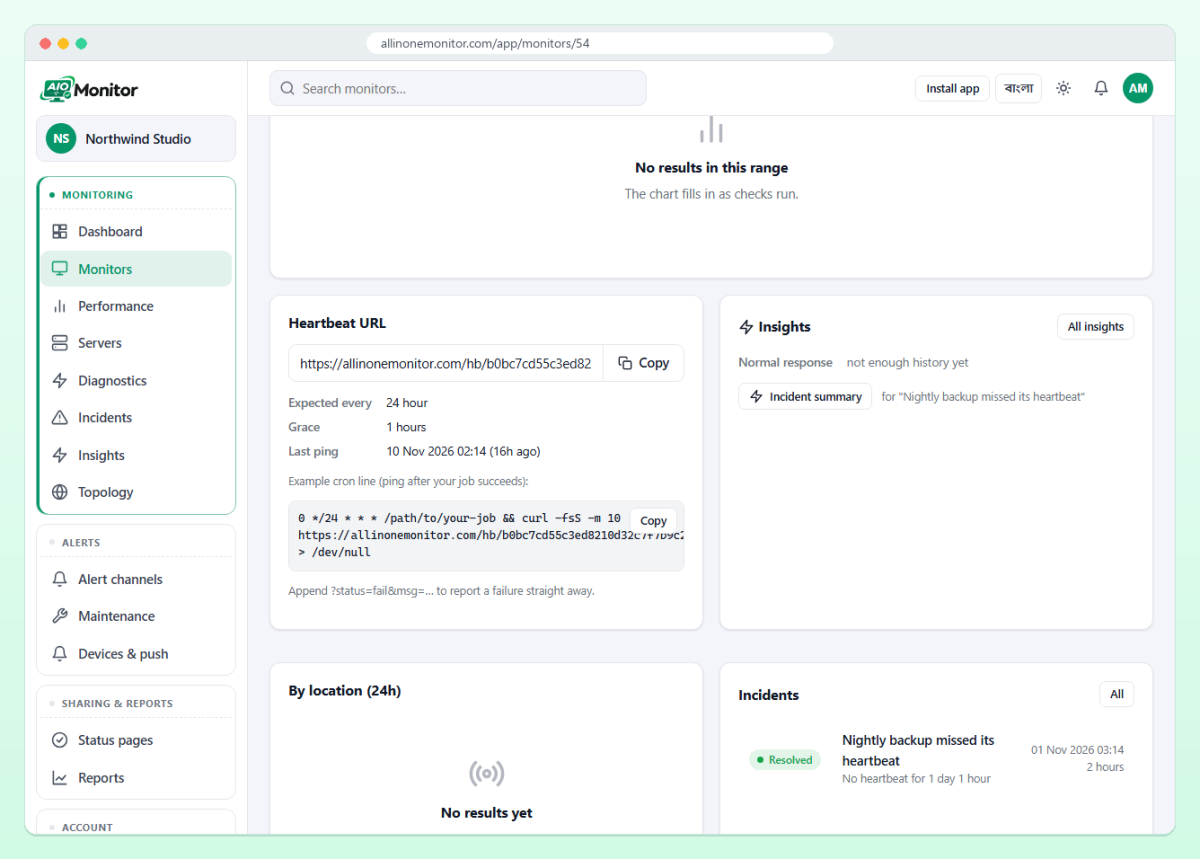
The monitor page shows the heartbeat URL again, the expected interval, the grace, the time of the last ping, an example cron line and the reminder that ?status=fail&msg=… reports a failure straight away. Below that, the uptime bar and the results list show the check history, so you can see every night the job missed.
What to put behind a heartbeat
- Backups: database dumps, file backups and off-site copies. A backup job alert is the one you will be most grateful for.
- Data jobs: imports, exports, feeds to partners and nightly reports.
- Housekeeping: certificate renewal timers, log rotation, cache warmers and cleanup tasks.
- Billing and e-mail queues: anything where a silent stop costs money or trust.
- Scripts on machines you cannot probe: a server behind NAT can still call out to a heartbeat URL.
Practical tips
- Use one monitor per job and per server. A shared URL hides which machine stopped checking in.
- Pause the monitor before you deliberately switch a job off; paused monitors answer calls with HTTP 403 and send no alerts. For planned work, a maintenance window silences alerts without pausing.
- Keep the URL private. Anyone with it can report a ping, so treat it like a password and do not commit it to a public repository.
- Send heartbeat alerts to a channel someone reads in the morning; a missed nightly backup rarely needs a 3 a.m. phone call. See how channels and events work in the alerts documentation.
- Combine with a server monitoring agent to see why a job stopped, such as a full disk or a stopped service.
Every option of the Heartbeat type, including the rate limit of the endpoint, is in the monitors documentation.
Frequently asked questions
What is a dead man's switch in monitoring?
It is a check that alarms when an expected signal stops arriving. A heartbeat monitor is exactly that: your job reports in on a schedule, and silence longer than the interval plus grace raises an alert.
Should I ping at the start or at the end of the job?
At the end, after the job succeeds. A ping at the start only proves the job began, so a crash halfway through would go unnoticed.
Can a job report its own failure?
Yes. Call the heartbeat URL with ?status=fail and an optional msg parameter; the monitor turns Down at once and keeps the message.
How many heartbeat monitors can I create?
Each heartbeat is one monitor, so the limit is your plan's monitor count. See the pricing page.
Stop finding out about failed jobs too late
Create a heartbeat for your backups and scheduled tasks, add one line to each job, and let silence raise the alarm.